


Master SFM Compile for creating perfect animations in Source Filmmaker. Optimize models, maps, and scenes effectively with our step-by-step guide. Source Filmmaker (SFM) is a powerful tool used by animators and filmmakers to create stunning animations and cinematics using Valve’s Source engine. However, one of the most critical aspects of working with SFM is compiling. Whether you are compiling models, maps, or entire projects, understanding the SFM compile process is essential for optimizing performance and ensuring high-quality renders.
In this guide, we will explore the SFM compile process, how to compile models, maps, and scenes effectively, and troubleshooting common errors that users face during compilation.
What is SFM Compile?
SFM compile refers to the process of converting assets such as models, animations, and maps into a format that SFM can read and use efficiently. This process ensures that the assets maintain their quality while optimizing performance in the engine. Compiling is especially important when creating custom content for SFM, such as new character models, props, or custom maps.
Understanding the SFM Compile Process
The compilation process varies depending on the type of asset you are working with. The three main compilation types in SFM are:
- Model Compilation: Converts raw 3D models into a format that SFM can use.
- Map Compilation: Transforms raw map files into usable game environments.
- Animation and Scene Compilation: Finalizes animations and scenes for rendering.
Let’s break down each type of compilation and how you can optimize them for the best results.
How to Compile Models in SFM
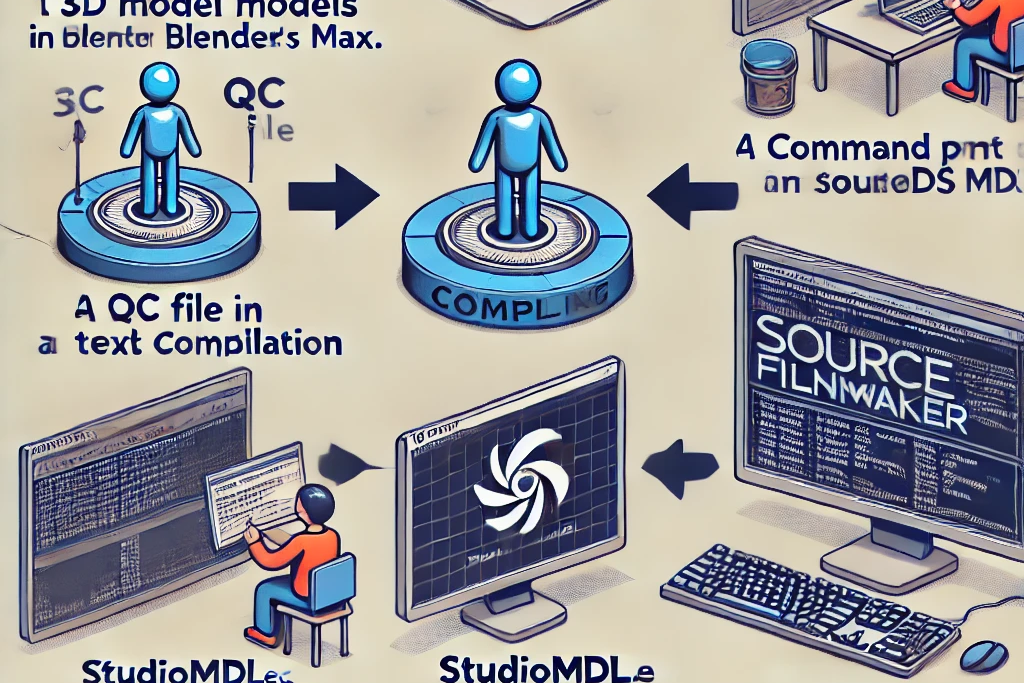
Compiling models in SFM requires the use of a model compiler such as Crowbar, which is a popular tool among SFM and Source engine users. Here’s how to compile a model:
Step 1: Prepare the Model
Ensure that your model is in the correct format. The common file formats for SFM models include .SMD and .DMX.
Step 2: Use Crowbar for Compilation
Crowbar allows you to decompile and compile models for Source Filmmaker. Follow these steps:
- Download and install Crowbar.
- Open Crowbar and navigate to the Compile tab.
- Select the QC file for your model.
- Choose the correct output directory (usually inside the SFM usermod folder).
- Click “Compile” to convert the model into a usable format.
Step 3: Test the Model in SFM
After compiling, import the model into SFM and check for any issues such as missing textures or incorrect scaling. If there are problems, you may need to adjust the QC file or texture paths.
How to Compile Maps in SFM
Compiling maps involves converting raw map files into a format that can be loaded in SFM. The Hammer Editor is used to create and compile maps for SFM.
Step 1: Design the Map in Hammer
Create your map using the Hammer Editor, ensuring that all entities, textures, and lighting settings are properly configured.
Step 2: Compile the Map
- Open Hammer and go to the File menu.
- Select Run Map (F9 shortcut).
- Choose the appropriate compile options:
- Fast Compile: Quick but lower quality.
- Full Compile: Higher quality but takes longer.
- Click “OK” to begin compilation.
Step 3: Load the Map in SFM
Once compiled, move the .BSP file to the usermod/maps folder in SFM. Open SFM and load the map to check for errors.
How to Compile Animations and Scenes in SFM
After creating an animation or cinematic sequence in SFM, you may want to export and compile it into a video format.

Step 1: Finalize the Scene
Make sure all animations, lighting, and effects are properly set up.
Step 2: Render the Animation
- Open SFM and go to File > Export Movie.
- Choose a resolution and format (MP4, AVI, or image sequence).
- Select the output location and render the animation.
Step 3: Post-Processing (Optional)
For high-quality output, you may want to edit the rendered video in software like Adobe Premiere Pro or DaVinci Resolve to add final touches.
Common Errors and Fixes in SFM Compile
During the SFM compile process, you may encounter several errors. Here are some common ones and how to fix them:
1. Missing Textures
- Check the texture paths in the QC file.
- Ensure textures are placed in the correct materials folder.
2. Model Scaling Issues
- Adjust the scale settings in the QC file.
- Use a 3D modeling program like Blender or 3ds Max to rescale the model before compilation.
3. Map Fails to Load in SFM
- Verify that the BSP file is in the correct usermod/maps folder.
- Check the compile log in Hammer for missing entities or texture errors.
Tips for Optimizing SFM Compile
- Use high-quality textures: Ensure textures are optimized but not too large to avoid lag.
- Optimize models: Reduce unnecessary polygons in your models.
- Use proper lighting settings: Avoid excessive lighting effects that may slow down rendering.
- Render in image sequences: This prevents crashes and improves video quality.
FAQs
1. What is the best format for SFM models?
The best formats for SFM models are .SMD and .DMX, as they are compatible with Source Filmmaker.
2. Why does my compiled model have missing textures?
Missing textures usually occur due to incorrect file paths. Make sure textures are in the right folder and referenced correctly in the QC file.
3. How long does it take to compile a map in SFM?
The time varies depending on the complexity of the map and the compile settings. A simple map may take a few minutes, while a detailed one can take an hour or more.
4. Can I use Blender for SFM model compilation?
Yes, Blender is commonly used for creating and exporting models for SFM. You need to export the model in .SMD format and compile it using Crowbar.
Conclusion
Understanding the SFM compile process is crucial for anyone working with Source Filmmaker. Whether you’re compiling models, maps, or animations, following the right steps ensures smooth performance and high-quality output. By using tools like Crowbar and Hammer Editor, optimizing assets, and troubleshooting common errors, you can enhance your workflow and create professional-grade animations with ease.
Mastering the SFM compile process will not only improve your projects but also save you time and effort. Keep experimenting, and happy animating!
